
Your account, passkeys and recovery codes
Flytower has no passwords. You sign in with a passkey: your phone, laptop or password manager proves it's you with your fingerprint, face or PIN. Passkeys can't be phished, and there's nothing to leak.
Setting up
The installer gives you a setup link and a setup token (or uses the token you chose). The first time, open the link (or open the panel and enter the token), create your passkey, and save the ten recovery codes you're shown. Download them or copy them somewhere safe, like your password manager. You're asked to type one back to show you've saved them.
More than one device
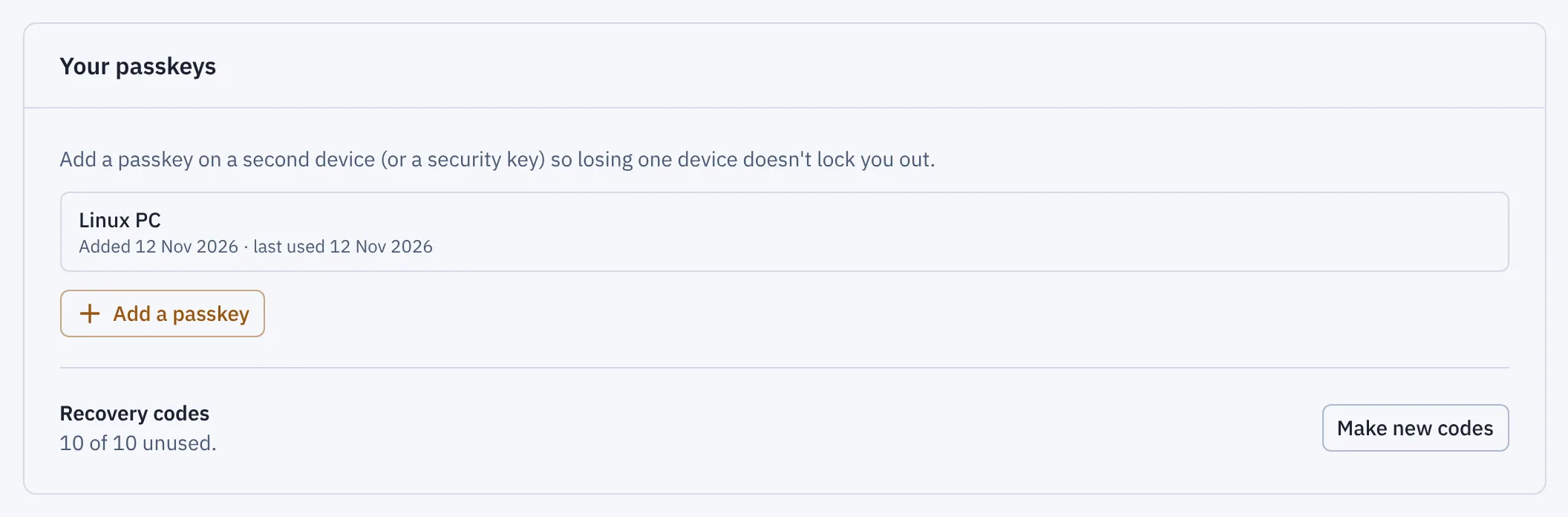
- Add a passkey
- Make new codes
On Your account (your name at the bottom of the sidebar), Your passkeys:
- Add a passkey creates one on the device you're using, or on a security key. Add at least two, so losing one device doesn't lock you out. Passkeys in iCloud Keychain, Google Password Manager, 1Password and similar sync between your devices by themselves.
- Remove a passkey you no longer use, or one on a lost device. Removing one also signs you out on every other device, so a lost one can't carry on; sign in again on the ones you still use. Your last passkey can't be removed.
If you lose every passkey
On the sign-in page, choose Lost your passkeys? Use a recovery code. Each code works once. After signing in with one, you're asked to add a new passkey straight away, before anything else.
Down to your last few codes? Your account, Make new codes gives you a fresh set of ten. The old ones stop working. If your codes were made before Flytower 1.4.1, making a new set is worth doing: newer codes are quicker for the panel to check.
If you lose your passkeys and your codes
You need to get onto the machine itself, through your VPS provider's web console (or SSH if it's open). Then re-run the installer with a new setup token:
curl -fsSL https://github.com/MattA-Official/mc-panel/releases/latest/download/install.sh \
  | sudo bash -s -- --domain panel.example.com --setup-token NEW-LONG-RANDOM-TOKEN
sudo sqlite3 /var/lib/flytower/flytower.db 'DELETE FROM credentials; DELETE FROM recovery_codes;'
sudo systemctl restart flytower-panel
The panel then asks for the setup token again, as on the first day. Your servers, backups and settings are untouched. (sqlite3 may need installing with apt install sqlite3.)
Who did what
Activity lists every sign-in, passkey change and recovery-code use, alongside everything done to servers.
Your account
Click your name at the bottom of the sidebar to open Your account:
- Profile: change your name (it shows in Activity and on Access) and pick Appearance: light, dark or system. Your choice is saved for you, so it follows you to every device. The sun and moon button in the sidebar switches too.
- Your passkeys and recovery codes, as above.
- Sign out everywhere else: for a lost phone or a shared computer. Every other browser signed in as you is signed out on its next click; this one stays signed in. It asks for your passkey.
This browser
Some settings live in the browser rather than on your account, so each device can be different. They're under This browser on Your account.
- Use Flytower's right-click menus. Right-click a server card for its actions: open, start or stop, back up, go to a tab, clone or delete. Shift + right-click always shows the browser's own menu, as do text you've selected and any field. On a phone, press and hold a card instead. Turn this off to keep the browser's menu everywhere; the ⋯ button on each card offers the same actions either way.
- Use single-key shortcuts. Keys like G then S for Servers, J and K to move through a list, and ? to list them all (see Keyboard shortcuts). Turn this off if keys get pressed for you, by voice control for example. Ctrl + K and Ctrl + S work either way.
Overview
Flytower is a web panel for running Minecraft servers on your own VPS. You install it once, then create and look after servers from the browser. You sign in with a passkey.
Addresses and DNS
By default players connect to your VPS's IP address, with a port for every server after the first. A hostname per server lets them type survival.example.com instead, with no port.