
Discord app
Flytower can answer slash commands in your Discord server, such as /status and /players, through a Discord app you make. It's separate from notifications, which only need a channel webhook.
Discord sends each command to your panel over HTTPS, so the panel needs a domain that Discord can reach from the internet. Flytower doesn't keep a connection open to Discord, unless you turn on chat from Discord.
Connecting an app
- Open the Discord Developer Portal and press New Application. Its name and icon are what people see next to the answers.
- On the app's Bot tab, press Reset Token and copy the token.
- In Flytower, open System, Integrations, paste the token into Discord app and press Connect. You're asked for your passkey.
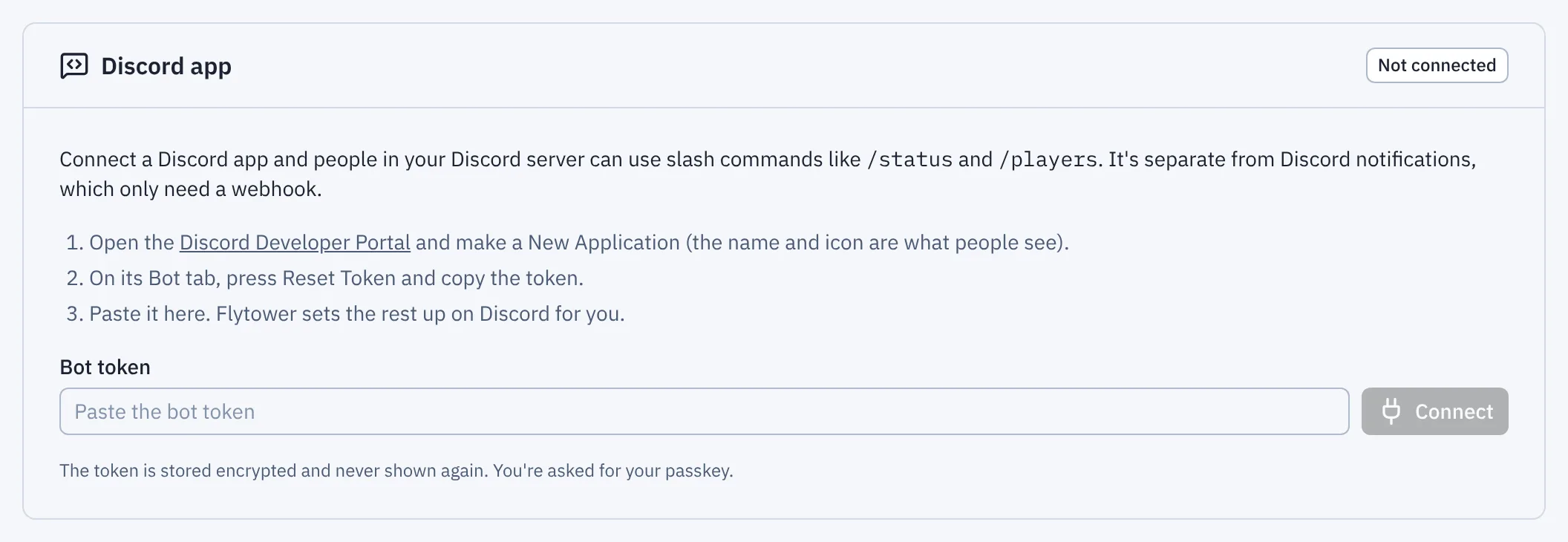
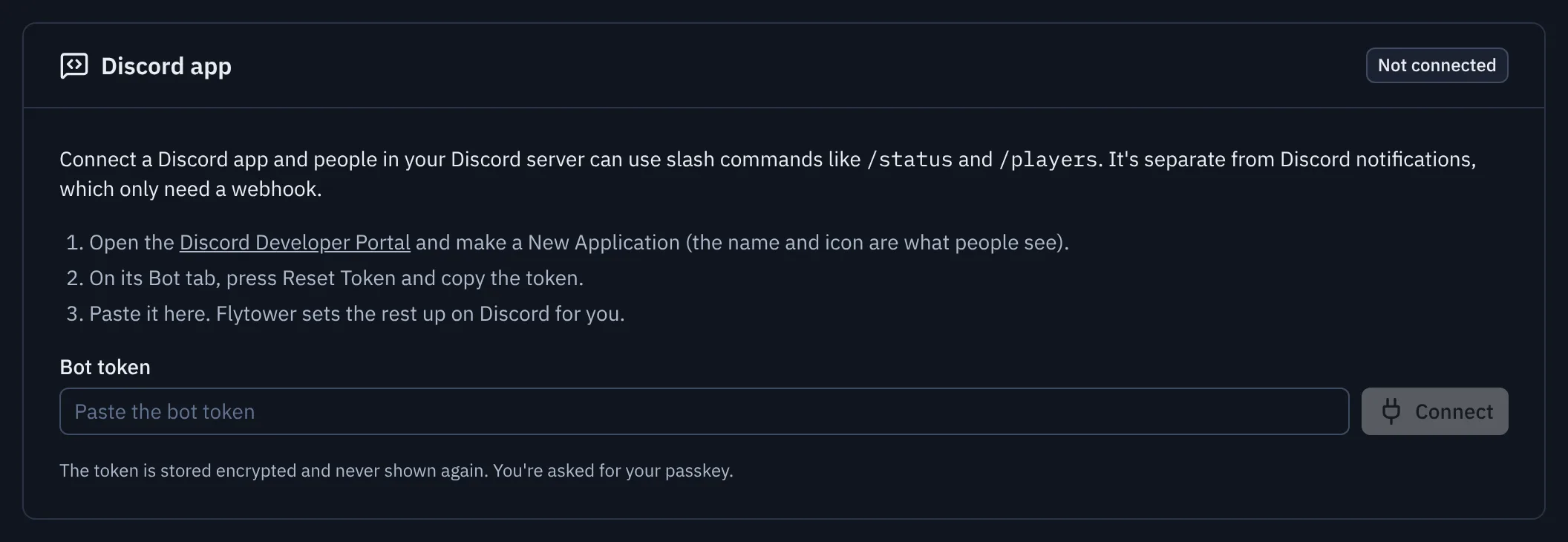
- Bot token
Flytower then:
- reads the app's name, application ID and public key from Discord, so you don't copy them by hand,
- stores the token encrypted (it's never shown again), and
- sets the app's Interactions Endpoint URL to
https://<your panel domain>/api/discord/interactions. Discord checks the address straight away by calling it, so a green Connected means Discord can reach the panel.
Last, press Add to a Discord server and pick the server. The app only needs the applications.commands scope, so it can't read messages or change anything in your Discord server.
Commands
| Command | Answers |
|---|---|
/status [server] | Whether the server is online, starting or offline, its address, how many are on, its version, and a link to its web map when that's public. |
/players [server] | Who's on right now. |
/leaderboard [stat] [period] [server] | The top players for playtime, deaths, mob kills, distance or blocks mined, for all time, this month or this week. |
/stats <player> [server] | One player's figures for all time, and what they added this week. |
Staff commands
These need a Discord role mapped to a Flytower role with the permission shown, on the server picked.
| Command | Needs | Does |
|---|---|---|
/whitelist add <player> [server] | Manage players | Lets a player join. Works while the server is stopped too, like the Players tab. |
/whitelist remove <player> [server] | Manage players | Takes a player off the whitelist. |
/restart [server] | Start and stop | Says "Restarting" at once, then "back up" once players can join again (or why it failed). |
/backup [server] [note] | Take backups | Says "Backing up" at once, then the size when it's done (or why it failed). |
/say <message> [server] | Send console commands | Shows [Discord] Your name: message to everyone in the game. |
You can leave out server when your role only covers one server; otherwise Discord suggests the ones you can act on. Every staff command is in Activity as "Name via Discord".
/say sends plain text only: Minecraft formatting codes and line breaks are taken out, and nothing in the message can run a command or add a click action.
Leave out server to get every server at once; as you type it, Discord suggests the servers you can see.
Both answer from the same information as the public status page, so the server itself is never asked and the page's settings apply: a server whose page shows only a count shows only a count in Discord, and one that hides players or its version hides them here too.
Which servers show. Servers with their public page turned on, plus any server the caller can see through their Discord role. Everything else stays hidden: asking for it answers the same as a server that doesn't exist.
Leaderboards and stats. /leaderboard and /stats use the same figures as the server's stats on its Players tab. They only cover servers whose public page shows leaderboards (which needs the page to show player names, and the server to keep stats). Players left out of stats never appear. For anyone who can't see the server in Flytower, /stats only knows the players on the public all-time or weekly leaderboards (the top five), shows only their figures on those boards, and never says when someone last played. With more than one such server, pick one with server.
Answers are posted in the channel for everyone to see, except "no such server" and similar, which only the person who asked sees. Player names can never ping anyone.
Flytower sends Discord its command list when you connect, and again after an update if the list changed. If Discord didn't take it, the card says so, with Send them again.
Discord roles
Staff commands use the access of a Flytower role. Under Discord roles on the card, give a Discord role a Flytower role, for all servers or one server, and its members can do in Discord what that role can do in the panel. Discord sends the caller's roles with every command, so nobody has to link their Discord account.
- In Discord, turn on Developer Mode (User Settings, Advanced).
- In your Discord server's Server Settings, Roles, right-click the role and choose Copy Role ID.
- On the card, press Give a Discord role access, paste the ID, give it a name you'll recognise (Discord doesn't tell the app role names), and pick the Flytower role and servers.
A member with several mapped roles gets all of them together. Changes apply to the next command. Owner can't be given out through Discord. Saving needs Manage integrations, Manage roles and your passkey, and is in Activity. As with giving people roles, you can only give a Discord role what you could do on those servers yourself, and only remove a mapping you could have made. Mappings you leave as they are stay.
Anyone without a mapped role who tries a staff command gets a private "Sorry, you can't use that", and the attempt is in Activity. Commands used in a direct message with the app only get what everyone gets.
Everything done through Discord is in Activity as "Name via Discord", using the member's nickname in your Discord server.
If the endpoint isn't set
The card says Endpoint not set, with Discord's reason, when Discord couldn't reach the panel or the panel has no domain. Fix the cause, then press Try the endpoint again. You can also copy the endpoint from the card into Interactions Endpoint URL on the app's General Information page in the Developer Portal; Discord checks it there too.
Testing and disconnecting
Test connection checks the stored token still works for the same app, and notices if the endpoint was changed in the Developer Portal.
Disconnect takes the app's commands down, clears its endpoint, and forgets the token. The app itself stays in the Developer Portal and in any Discord server it was added to; remove it there if you don't want it any more. If you think the token has leaked, press Reset Token in the Developer Portal: the old one stops working at once, and you connect again with the new one.
Game chat in a channel
Each server can post what players say in game to a Discord channel. This only needs the channel's webhook, not the app.
- In Discord, open the channel's settings, Integrations, Webhooks, press New Webhook and Copy Webhook URL.
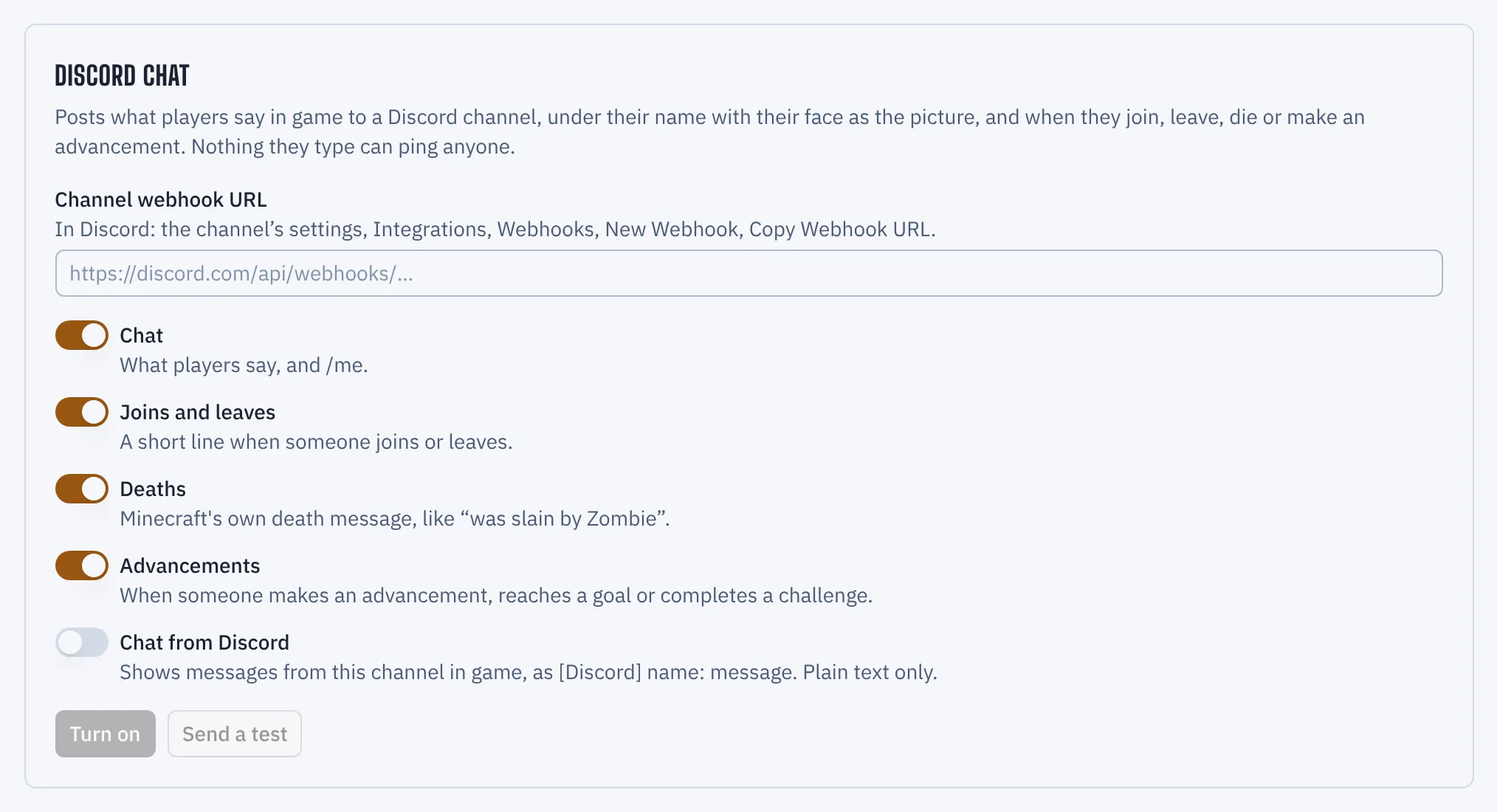
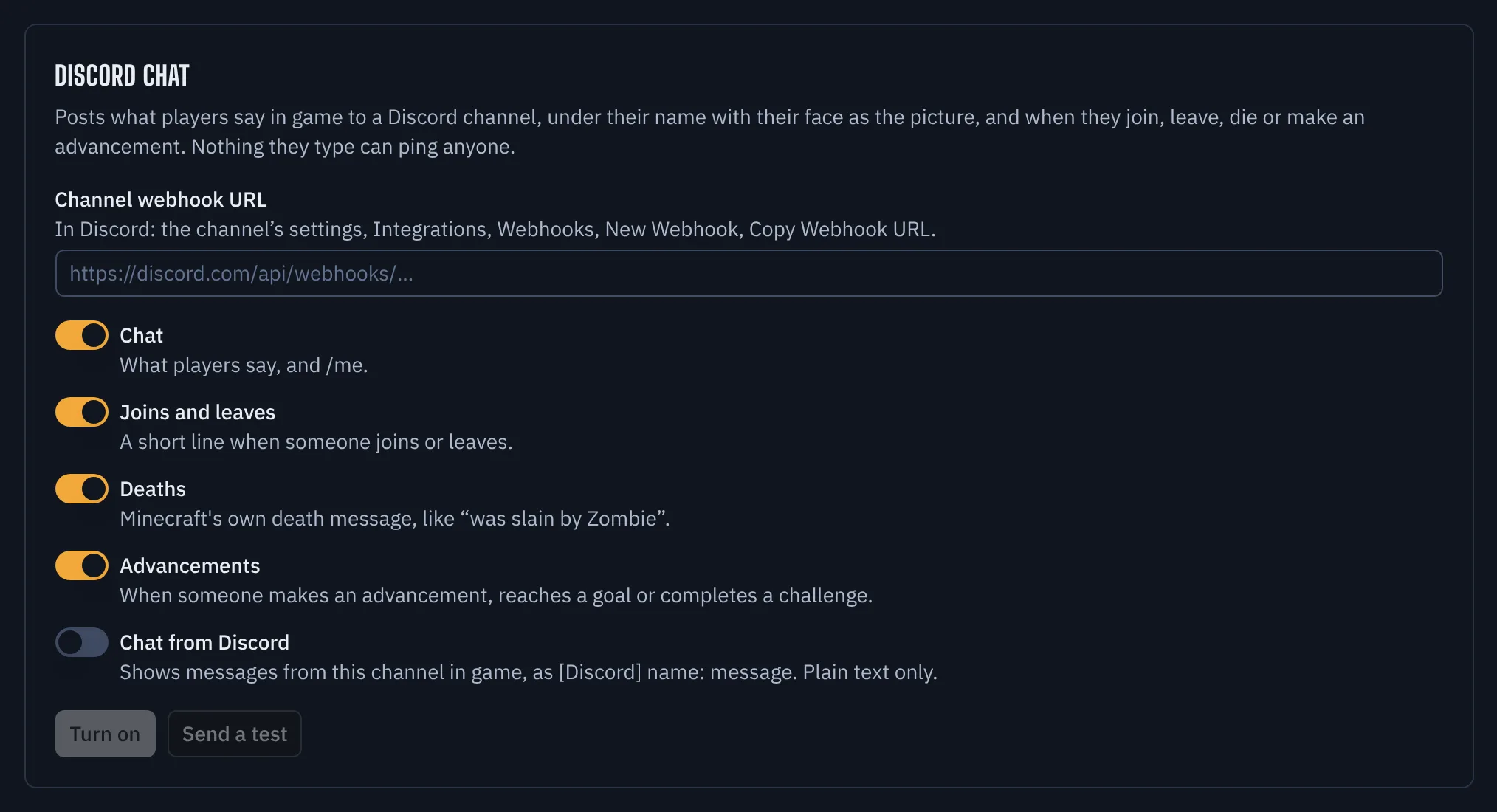
- In Flytower, open the server, Settings, Community, Discord chat, paste the URL and press Turn on. You're asked for your passkey. Send a test posts a line first if you'd like to check.
- Channel webhook URL
Chat (and /me) is posted under the player's name with their face as the picture. say and me from the panel's console are posted under [Server] and the name of whoever sent them. Joins, leaves, deaths and advancements are posted the same way, in italics (joined the game, was slain by Zombie, has made the advancement [Stone Age]). Everything is plain text, unlike notifications, which use embeds. Turn any of the four off with the switches. Lines come from the server's log the moment Minecraft writes them, including chat that mods like No Chat Reports turn into system messages.
Nothing typed in game can ping anyone: every message has mentions switched off, and Markdown, @everyone, <@…> and similar show exactly as typed. Links still work but don't get a preview.
Discord limits how fast a webhook can post. Flytower sends one message at a time per server and waits whenever Discord says to. When chat is quicker than that, one player's lines in a row go as one message, and a bigger backlog goes as one message listing everyone's lines, so nothing is lost unless the server is 200 lines behind.
Player faces need the panel to have a domain, because Discord fetches them from the panel (the address is signed, so it can't be used to look up other players). Without one, chat is posted with Discord's default picture.
If Discord says the webhook is gone (it was deleted) or refuses it, Flytower stops posting and the card says why. Paste a new webhook, or press Save to try the same one again. The webhook URL is stored encrypted and never shown again; the card shows only the webhook's ID.
Chat from Discord
Messages people send in a server's Discord chat channel can be shown in game too, as [Discord] name: message. It's off until you turn it on, because it keeps one connection to Discord open from the panel and needs a setting switched on in the Developer Portal.
- In the Discord Developer Portal, open the app's Bot tab and turn on Message Content Intent under Privileged Gateway Intents. Without it Discord sends messages with no text.
- In Flytower, open System, Integrations. Under Chat from Discord on the Discord app card, press Add the bot to a Discord server and pick your server. Unlike the commands, this adds the app as a bot; it only asks to see channels.
- Press Turn on. You're asked for your passkey. The badge shows Connected once Discord has accepted the connection.
- For each server, open Settings, Community, Discord chat, switch on Chat from Discord and press Save. Messages from the channel the server's chat webhook posts to are then shown in game. Flytower asks Discord which channel that is, so there's nothing to copy.
The name shown is the person's nickname in your Discord server, or their display name. Only what people type comes through: bots, webhooks (including Flytower's own chat posts, so nothing echoes back) and Discord's own messages like joins and pins are left out. A message that's only a picture, file or sticker shows as [sent an image] and so on.
Messages are plain text in game. Mentions show as @name, channels as #channel, roles as @role and custom emoji as :name:; Markdown is taken out and spoilers show as [spoiler]. Line breaks become spaces, Minecraft formatting codes are removed, and anything over 256 characters is cut. The text is sent with tellraw as JSON built by the panel, so nothing typed can run a command or add a click action. Messages also show in the server's console in the panel.
Messages only go to servers that are running, one at a time and in order. If Discord sends more than 20 at once for one server, the rest are dropped rather than queued up.
If the connection drops
The connection heartbeats as Discord asks. When it drops, or Discord stops answering, the card shows Reconnecting and the panel connects again, resuming where it left off so no messages are missed. It waits a little longer after each failed attempt, up to a minute.
It stops, with Stopped and Discord's reason, when trying again can't help: most often because Message Content Intent is off, or the bot token was reset. Fix that, then press Connect again. Disconnecting the app closes the connection; connecting one again reopens it if chat from Discord is still on.
A server's Discord chat card says when chat from Discord is switched on there but can't work yet: when it's off for the whole panel, the connection has stopped, or the bot isn't in that channel's Discord server.
Turning chat from Discord on and off is in Activity, as is switching it on or off for a server.
How it's kept safe
- Every request to the endpoint must carry Discord's Ed25519 signature, made with the app's private key and checked against its public key before anything else happens. Requests with a missing or wrong signature, or a timestamp more than five minutes off, get a 401.
- The bot token and each server's chat webhook are encrypted with keys derived from the panel's own secret, like notification and off-site storage secrets.
- Connecting and disconnecting need Manage integrations and a passkey check, and both are in Activity. So does turning on chat from Discord.
- Chat from Discord asks Discord for as little as it can: the list of Discord servers the bot is in, and messages in the channels it can see. The bot only has permission to see channels.
Crashes
Flytower notices when a server crashes, tells you why, and stops a server that keeps crashing from restarting forever. It also spots a server that is still running but has stopped responding.
Disk space
A full disk is one of the few things that can corrupt a Minecraft world: if the server can't finish writing a save, the region file it was writing can be left half done. Flytower shows where the space has gone and warns you well before it runs out.