
Your first server
Create it
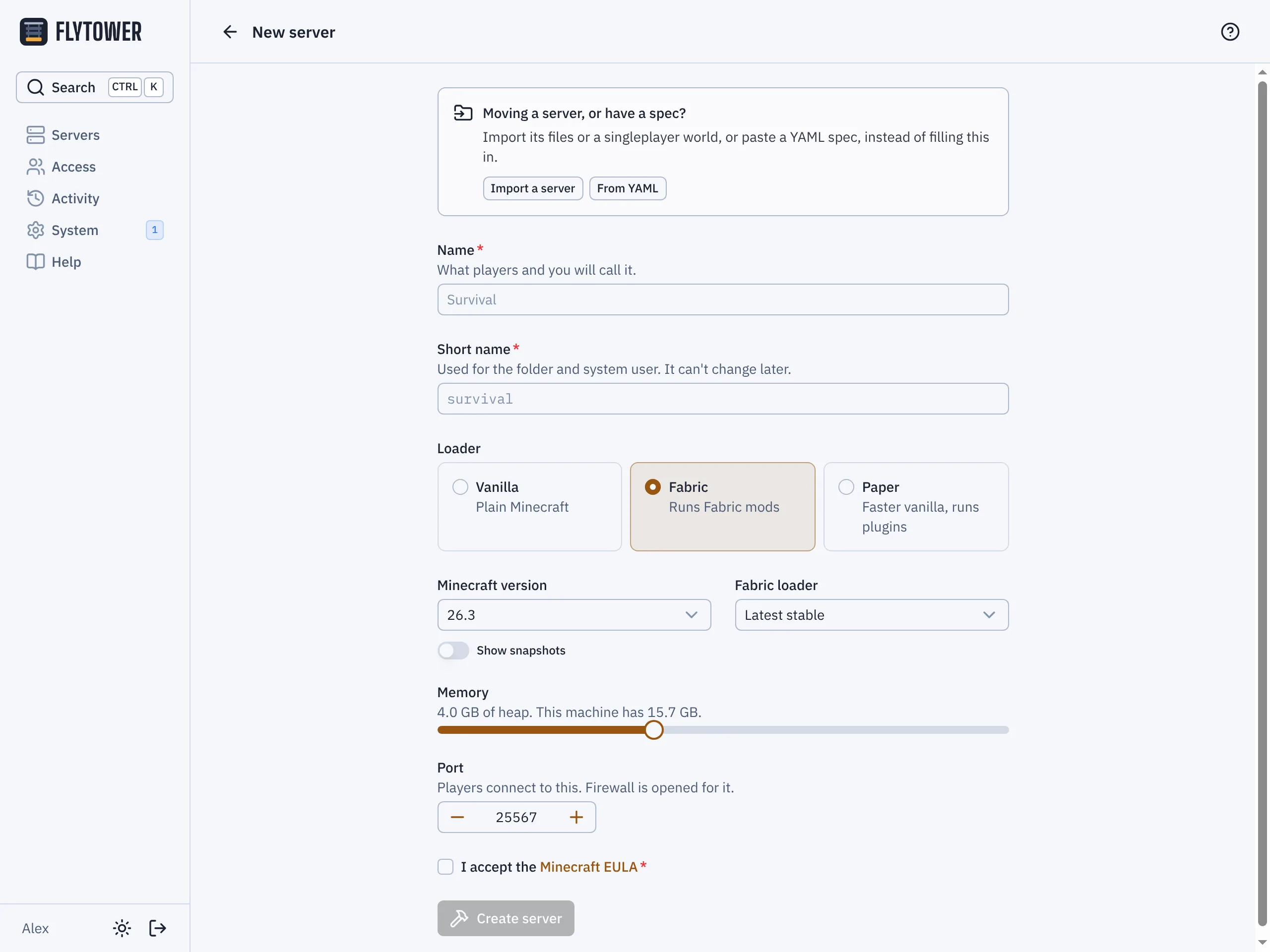
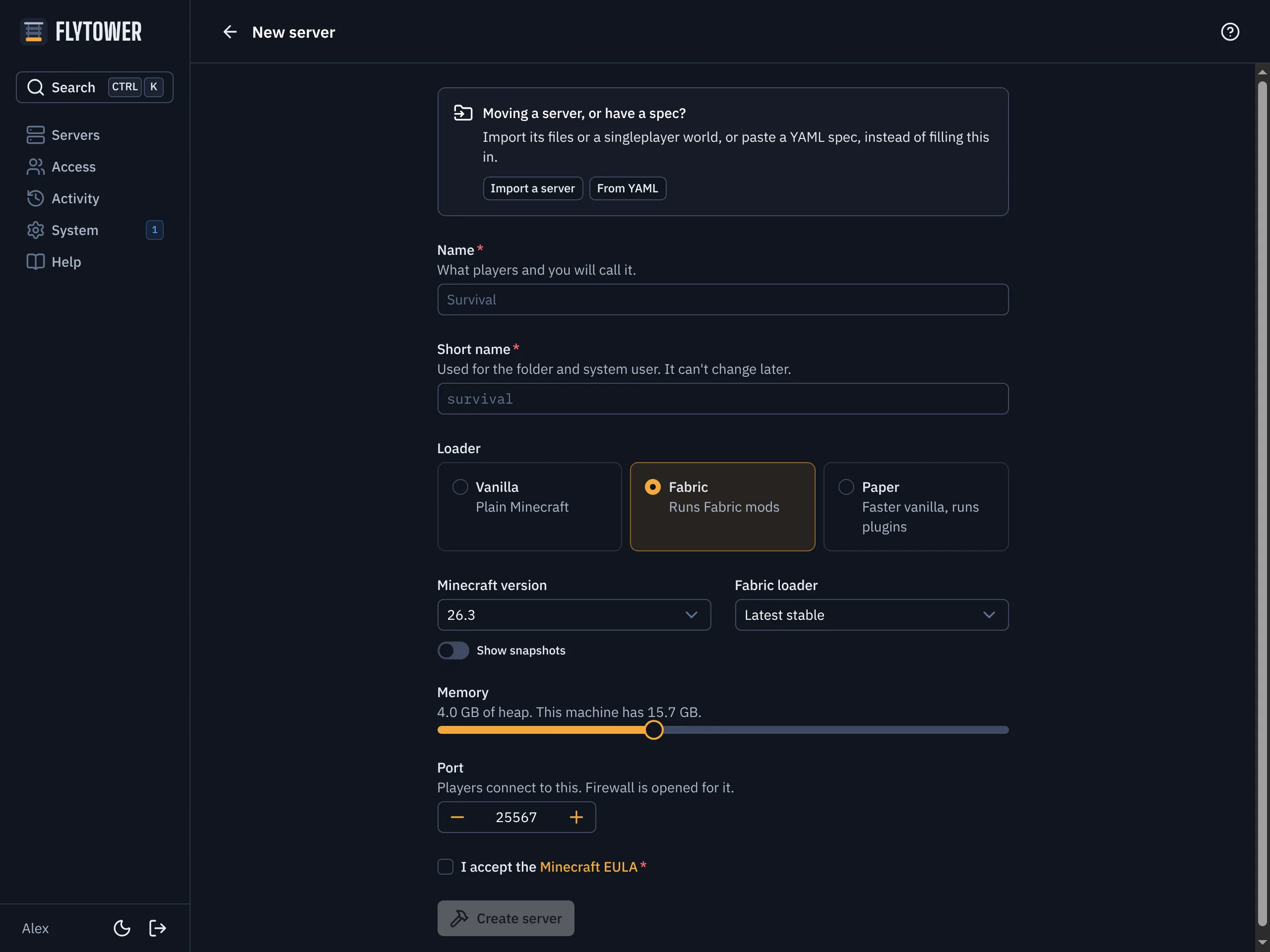
- Name
- Loader
- Memory
- Port
- Servers, New server.
- Give it a name, which is what players see. The short name below it is used for its folder and can't change later.
- Pick a loader:
- Vanilla: Mojang's server, unchanged. Datapacks only.
- Fabric: for mods (performance mods like Lithium, or gameplay mods). Datapacks work too.
- Paper: for plugins (from Modrinth or Hangar), with Paper's own performance improvements. Datapacks work too.
- Pick the Minecraft version. The newest release is chosen for you; tick Snapshots to see test versions.
- Choose memory. The slider stops at what the machine has free (see Memory budget below).
- Leave port empty to use the next free one, starting at 25565.
- Create server. Flytower installs the right Java, downloads the server, accepts the EULA for you (you agree to it by creating the server), and starts it.
Players connect to your server's address (Copy address). That's your VPS's address, with :port if it isn't 25565. To give each server a name of its own instead, see Addresses and DNS.
Other ways to start
- Import server: upload a world (a zip of the world folder) or a whole server folder, from your own computer or another host. Vanilla, Fabric, Paper, Spigot and Purpur servers are recognised. Spigot and Purpur come in as Paper, which reads the same worlds and plugins.
server.properties, the whitelist, ops and bans come across. - From YAML: paste a server spec, for example one downloaded from another Flytower.
- Clone (a server's Settings, Maintenance): a copy with the same settings and content, with or without its world.
- A deleted server: deleting a server archives its folder first, and you can import it back from Import server.
The server's tabs
| Tab | What it's for |
|---|---|
| Console | Live output, and commands (without the /). Start, Stop and Restart are in the header. View logs opens today's log and older ones to search or download, and Crashes lists recent crashes. |
| Players | People: who's online; kick, ban, operators, and the whitelist. Stats: leaderboards and a card for every player (see Stats). |
| Content | Mods, plugins and datapacks. See Content. |
| World | Backups (taking, restoring, schedule, off-site copies), the Web map, Past worlds and world exports, and Tools: pre-generating chunks, copying another server's world in, and resetting. |
| Files | The server folder: edit, upload, rename, delete. |
| Settings | General: server.properties, memory, version and loader, address. Community: public page, player stats, Discord chat. Schedules. Maintenance: crashes, disk use, cloning, deleting. Edit as YAML at the bottom: the whole server as one spec. |
World and Settings list their sections on one page. Click a section's bar to open or close it; the panel remembers which ones you left open. Closed sections show a short summary on their bar, such as whether the public page is on.
How busy a server is
On the servers list, each running server's card shows its Tick time, Memory and CPU, with a line of tick time over the last hour. Each figure is marked ● fine, ▲ busy or ■ struggling, and hovering over it says why:
- Tick: Minecraft aims for 20 ticks a second, so each tick has 50 ms. Over 40 ms is busy; over 50 ms is struggling, and the game slows down for everyone.
- Memory: busy over 90% of the server's memory limit. Give it more under Settings, General if it stays there.
- CPU: the server's share of the whole machine. Busy when it has been over 85% for five minutes in a row.
Click the figures for the full charts: CPU, memory, players and time per tick over the last hour, day or week.
Typing commands in the console
The console suggests as you type: command names first, then what comes next, such as online players and @a/@p for a player, item and block ids for give and setblock, effects, sounds, game modes and coordinates. A line under the suggestions shows the command's shape, like give <targets> <item> [<count>].
- Tab fills in the highlighted suggestion; press it again to go through the others, and Shift+Tab to go back. Type a space to move on to the next part.
- Up and Down move through the suggestions while they're open, and through your earlier commands when they're not. Escape closes them, and → at the end of the line takes the greyed-out suggestion.
- On a phone, suggestions are a row of buttons above the box.
Flytower gets the vanilla commands from the game itself: the first time a console opens for a Minecraft version, it downloads that version's server from Mojang and runs its built-in command report (in the background, at low priority, with the Java the server already uses), then keeps the result. Until that's done, and if it can't be done, you still get the commands from the server's help. Mods' and plugins' commands come from help too, so they complete by name and show their usage; their arguments don't. They're read again each time the server starts.
Only people who can send commands get suggestions.
Talking to players
say, me and msg (or tell and w) from the console show under your name rather than the game's "Rcon": say hello shows [Server] Your name: hello to everyone, with the tag in your brand colour, and msg Steve hi reaches only Steve as "Server Your name whispers to you: hi". The message is plain text, so formatting codes are taken out and @p in it isn't swapped for a name. A scheduled command task shows as [Server] alone. If the server posts game chat to Discord, say and me go there too, under [Server] Your name; whispers don't.
How it looks in the server list
Settings, General, Game settings has the server's entry in Minecraft's multiplayer list.
- Server icon: Upload a PNG, JPEG or WebP picture (up to 10 MB), drag and zoom to crop it square, and save. Flytower scales it to the 64×64
server-icon.pngMinecraft reads, keeping only the image itself (nothing else from the file, such as its metadata). Remove goes back to the default. Clones keep the icon. It isn't part of the spec, since a spec can't carry a picture. - Message of the day: two lines, with colours and formatting from the toolbar, or
§codes with Show codes. Seeproperties.
A preview shows the whole entry as it'll look, and warns when a line is too long. Minecraft reads both when the server starts, so they show after the next restart.
Plans
Anything that changes what a server runs (content, its version or loader, settings in YAML) shows a plan first: what will be added, updated or removed, how much will be downloaded, and whether a restart is needed. Nothing happens until you press Apply. Anything that touches mods or the world takes a backup first.
Memory budget
Each server gets the memory you give it, plus about 0.5 GB that Java uses around it. Flytower keeps 1 GB for the system and itself, and won't let the total go over what the machine has. The Servers and System pages show who has what. If you need more room, lower another server's memory or move to a bigger VPS.
Dangerous actions
Restoring a backup, resetting or copying a world, deleting a backup, an export, a past world or a server, opening SSH, adding or removing passkeys, off-site storage changes and updates all ask for your passkey again, unless you confirmed one in the last five minutes.
Disk space
A full disk is one of the few things that can corrupt a Minecraft world: if the server can't finish writing a save, the region file it was writing can be left half done. Flytower shows where the space has gone and warns you well before it runs out.
Installing Flytower
Flytower installs on a fresh Ubuntu 24.04+ or Debian 12+ server (amd64 or arm64). The installer sets up the panel only. Java and Minecraft are installed later, from the panel, when you create a server.