
People and roles
Flytower can have more than one person signing in. Each person has one or more roles, each for one server or for all of them. Roles add up: someone can be an Operator on every server and an Admin on one.
Roles
| Role | Can |
|---|---|
| Owner | Everything, including people, Flytower updates, SSH, notifications, off-site storage and branding. There's always at least one Owner. |
| Admin | Everything on their servers: settings, files, content, backups and downloads, worlds, schedules, and deleting the server. On all servers, can also create new servers. |
| Operator | Start, stop and restart, the console and logs, players (whitelist, operators, bans) and taking backups. |
| Viewer | The server's status, settings and who's online. Not the console or logs, since they show players' IP addresses. |
Dangerous actions (deleting, restoring, resetting a world, opening SSH and so on) still ask for a passkey, whatever the role.
Custom roles
On Access, the Roles tab lists every role, and New role makes your own, such as a Moderator who can read the console and manage players but not start or stop the server. Tick what it can do. Anything done on a server includes seeing it, and some permissions bring others along: sending console commands includes reading the console, changing files includes reading them, and Edit the YAML includes every kind of setting. The permissions under Across Flytower (creating servers, inviting and managing people, roles, updates, notifications, integrations, branding, SSH and all activity) only count when the role is given for all servers.
A server's settings are split so a role can cover just part of them: Change settings (properties, MOTD, icon, memory, recovery, address, time zone), Manage content (mods, plugins, datapacks, game version), Manage schedules, Change backup settings, and Manage community features (public page, stats, Discord chat, web map). The YAML tab can change everything at once, so it needs Edit the YAML; a change made anywhere else only needs the permission for the part it touches.
The editor groups permissions by area, and All ticks a whole area. Permissions that come with one you've ticked are ticked and locked, with what brings them. Ones you don't have yourself are switched off, since you can't hand them out. Permissions that amount to full control (console commands, changing files or content, the YAML, managing people or roles, updates and SSH) are marked Powerful, with a line on why.
Every role, built-in ones included, has a copy button. New role can also Start from any role. A copy only keeps the permissions you have yourself. Under each role you can see how many people have it and where.
On People, the checklist button shows what someone can do: everything their roles add up to, on all servers, on single servers, and across Flytower.
Changing a role changes it for everyone who has it, straight away. A role can be deleted once nobody has it, and its unused invite links are cancelled. Built-in roles can't be changed (copy one instead), and you can't make a role that can do more than you can. Activity says which permissions a change added or removed, and which roles someone was given or lost.
What people see
People only see the servers they've been given. On a server, tabs they can't use are hidden: without the console permission a server opens on its players, and Files only shows with the files permission. Where they can look but not change things (settings, content, players, backups, schedules, world), the tab says View only and its buttons are off. Start, stop and restart only show for people who can use them, as do New server and the System pages for updates, storage, notifications, branding and SSH.
If someone's access changes while they have the panel open, it updates when they come back to the tab.
Inviting someone
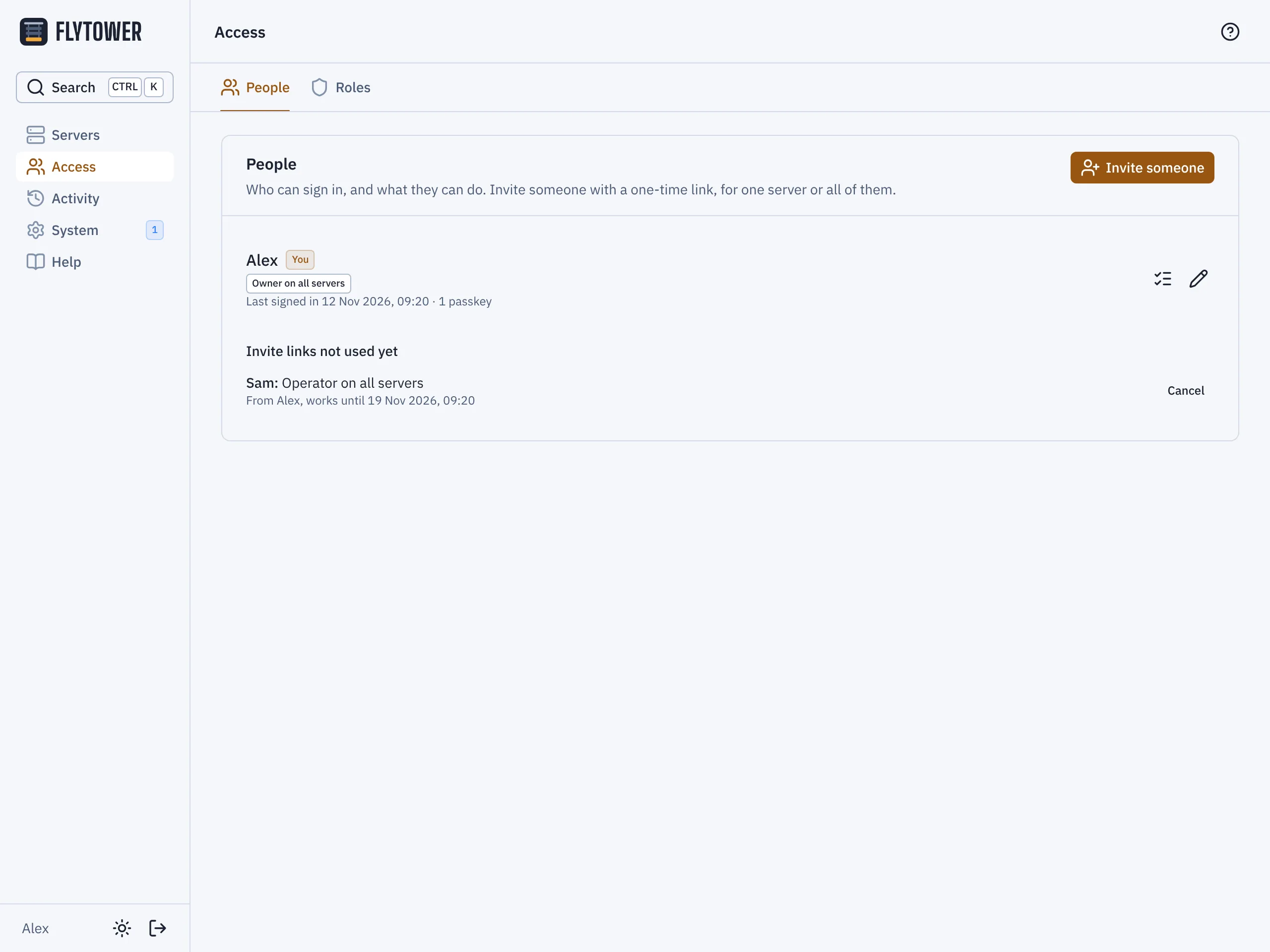
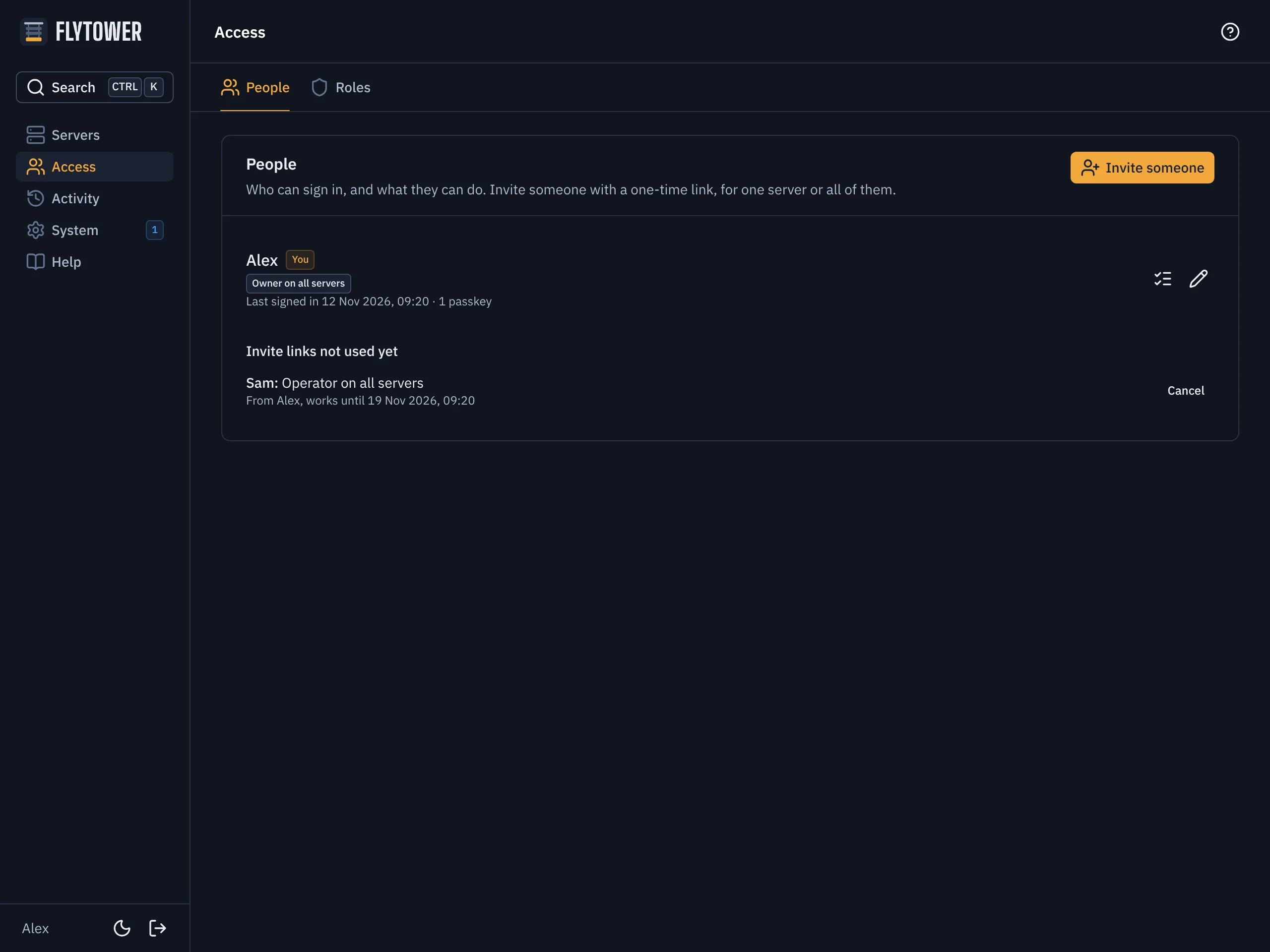
- Invite someone
- Go to Access in the sidebar. On the People tab, choose Invite someone.
- Pick a role and a server (or all servers). A note for who it's for is optional and only shown to you.
- Copy the link and send it to them. It works once, for 7 days, and is only shown once.
When they open it, they choose a name, create a passkey and save their recovery codes, the same steps as first-time setup. Until they do, the link shows under Invite links not used yet, where you can cancel it.
You can only give someone access you have yourself.
Changing or removing someone
On Access, People, choose the pencil to change someone's roles, or the remove button to take them off. Both ask for your passkey and apply straight away: a removed person is signed out on their next click and their passkeys stop working.
The last Owner can't be removed or given a smaller role. Make someone else an Owner first.
Everything here is recorded under Activity, in Sign-ins and access.
One server's access
A server's Settings has an Access section for people who manage people, or who have Manage who has access on that server. It lists everyone who can reach the server: roles they have on it, and roles they have on all servers (those are changed on Access). From there you can change someone's roles on this server, add someone who isn't on it yet, and make or cancel invite links for it.
Manage who has access suits someone who runs one server, like an event server, and brings in their own helpers. They can only give roles they could have on that server themselves, and can't touch other servers or anyone's roles for all servers. Admin doesn't include it; give it with a custom role. Changes are in the server's Activity.
Notifications
Flytower can tell you when something needs attention, so you don't have to watch the panel. It sends to a Discord channel, to your phone through ntfy, or to anything else as a signed JSON webhook.
Scheduled tasks
Each server can run things by itself on a schedule: a restart with a countdown in-game, a console command, or an announcement in everyone's chat. For example, restart at 5am every day, warning players 15, 5 and 1 minutes and 10 seconds beforehand.