
Public status page
Each server can have a page that anyone can open without signing in, at https://<your panel>/s/<server name>. It shows the server's name, icon and MOTD, a few lines you write about it, whether it's up, the address to join with a Copy button, the Minecraft version, and who's online. It wears your branding and works in light and dark mode. It's useful to link from a Discord server or a website, and those sites show a preview of the link with the server's name and description.
Turning it on
A server's Settings, Community, Public page: switch on Show a public page for this server, write a description (up to 500 characters, shown as plain text with line breaks), choose what it says about players, and Save. The card then shows the page's address with a copy button.
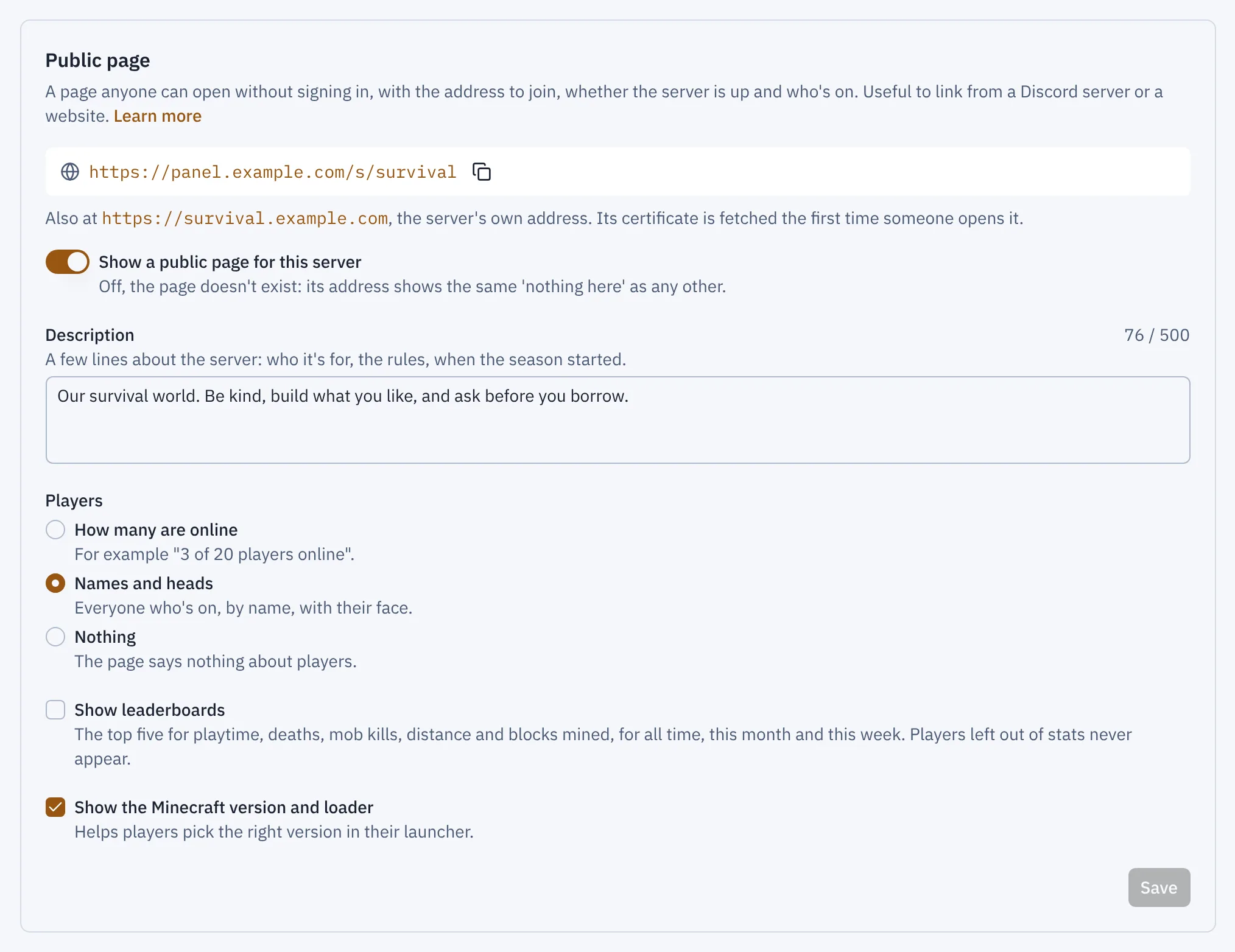
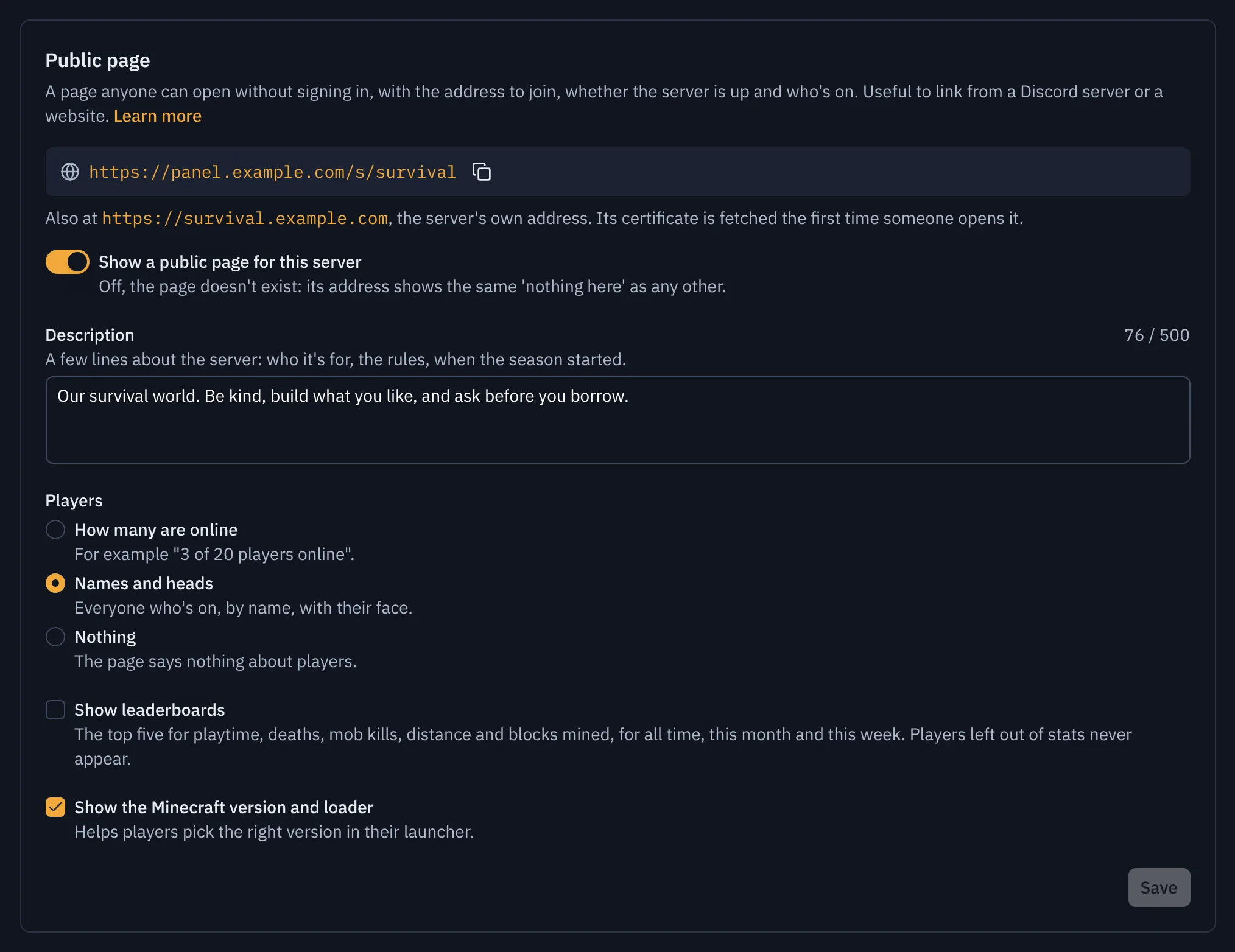
- Show a public page for this server
If the server has its own hostname, the page is also at https://<hostname>, such as https://survival.example.com. See On the server's own address.
While the page is off, its address says "Nothing here", exactly as for a server that doesn't exist, so nobody can find out which servers you have by guessing names.
You can also set it with public: in the YAML.
Players
You choose what the page says about who's online:
- How many are online (the default): "3 of 20 players online".
- Names and heads: everyone who's on, by name, with their face. Heads come through the panel, as on the Players tab, so visitors' browsers never contact Mojang or anyone else.
- Nothing.
Bear in mind that Minecraft itself already tells anyone who adds your server to their multiplayer list how many people are on, and a sample of their names, unless you set hide-online-players=true in the server's settings.
Leaderboards
With Names and heads chosen, you can also tick Show leaderboards. The page then shows the top five for playtime, deaths, mob kills, distance travelled and blocks mined, for all time, this month and this week, from the same figures as the server's stats on its Players tab. It's off unless you turn it on.
Leaderboards only show while the page shows names and the server keeps player stats. Players left out of stats never appear. Only names, heads and the figures leave the panel: nothing about when people played or who is left out.
Modpack for players
On a Fabric server, the page can offer a modpack (.mrpack): one file players open in the Modrinth app or Prism Launcher to get a ready-to-play instance with the right Minecraft, Fabric and mods. It's on by default while the page is on; switch off Offer a modpack for players to hide it.
What goes in it:
- From the server: each Modrinth mod in the server's content that also runs on players' computers, at the exact version the server has. Mods whose Modrinth page says they don't run on clients are left out (Modrinth's own labels decide, so a mod marked "optional" on clients, like Lithium, is included as optional), and so are plugins, datapacks and files that didn't come from Modrinth.
- Extras for players: client-only mods, shader packs and resource packs you add by their Modrinth slug, the last part of the project's address (
sodium,iris,complementary-reimagined). Flytower picks the newest version for the server's Minecraft version and adds the mods they need. A shader pack needs Iris, so addiristoo.
The Public page card lists What players get and, under Left out, anything that wasn't added and why.
The pack lists each file by its Modrinth download and checksums, as the format requires, so Flytower never copies or hosts anyone's mods: the launcher downloads them from Modrinth. It's rebuilt the first time someone asks for it after the server's content, extras or versions change, and kept under /var/lib/flytower/packs. Paper and vanilla servers don't get one, since their plugins and datapacks only run on the server.
On the server's own address
A server with a hostname (and its A record pointing at the VPS, which players need anyway) shows its public page at https://<hostname> too. There, nothing else of the panel is reachable: the address only serves that server's page, its modpack and the branding. Signing in and every other page stay on the panel's own domain.
Caddy gets a certificate for the hostname the first time someone opens it, after asking the panel that the name belongs to a server whose public page is on, so nobody can make your box request certificates for other names. Turning the page off stops new certificates; the address then shows "Not found".
Installs from before 1.2 get this added to Caddy's configuration by the system helper the first time it starts after an update, so the hostname starts working on its own. The old file is kept as /etc/caddy/Caddyfile.before-hostnames. If it's still not working, check journalctl -u flytower-agent for "updating the Caddyfile failed". /s/<name> on the panel's domain works either way. If you manage Caddy yourself (--no-caddy), Flytower leaves your Caddyfile alone, so add this to it:
{
    on_demand_tls {
        ask http://127.0.0.1:3000/api/public/tls-ask
    }
}

https:// {
    tls {
        on_demand
    }
    reverse_proxy 127.0.0.1:3000
}
Web map
When the server's web map is on and set so Anyone can open it, the page has an Open the map button once the map has been drawn. Turning the public page off makes the map private again.
How it stays light
Visitors never reach the Minecraft server. Who's online comes from the "joined the game" and "left the game" lines in the server's log, which Flytower already follows for notifications. When the panel starts, it asks the console once who's already on. Whether the server is up comes from systemd, as everywhere else in the panel.
The page refreshes itself every 30 seconds while it's open in a visible tab. The panel limits each visitor to 120 requests a minute, and nothing on the page loads from other sites.
What the page never shows
Only what's listed above leaves the panel: no ports other than the join address, no file paths, console output, backups or settings, and no other servers. Offline-mode player names get the default Steve or Alex head.