
Backups
Everything here is on a server's World tab, which opens on Backups.
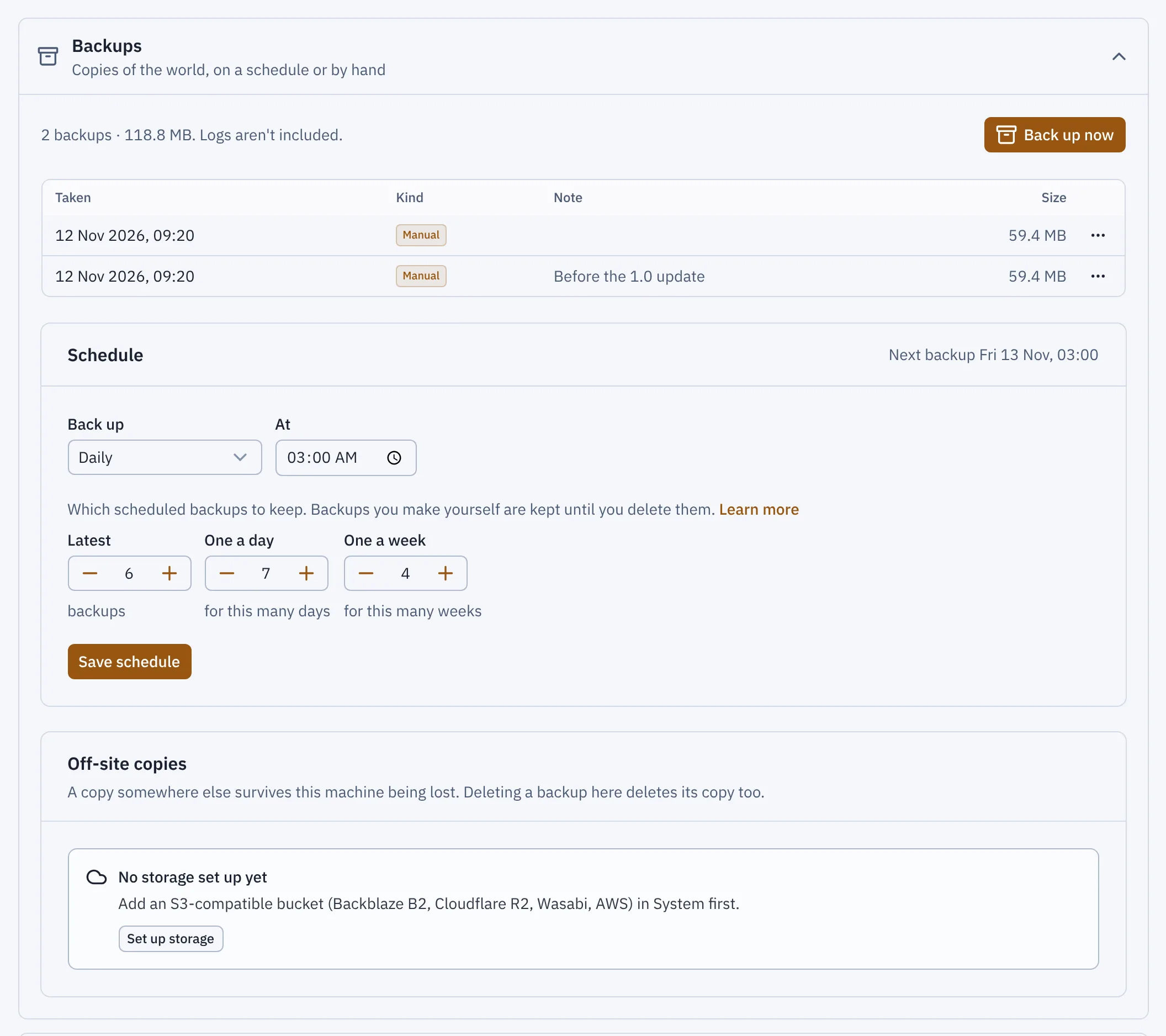
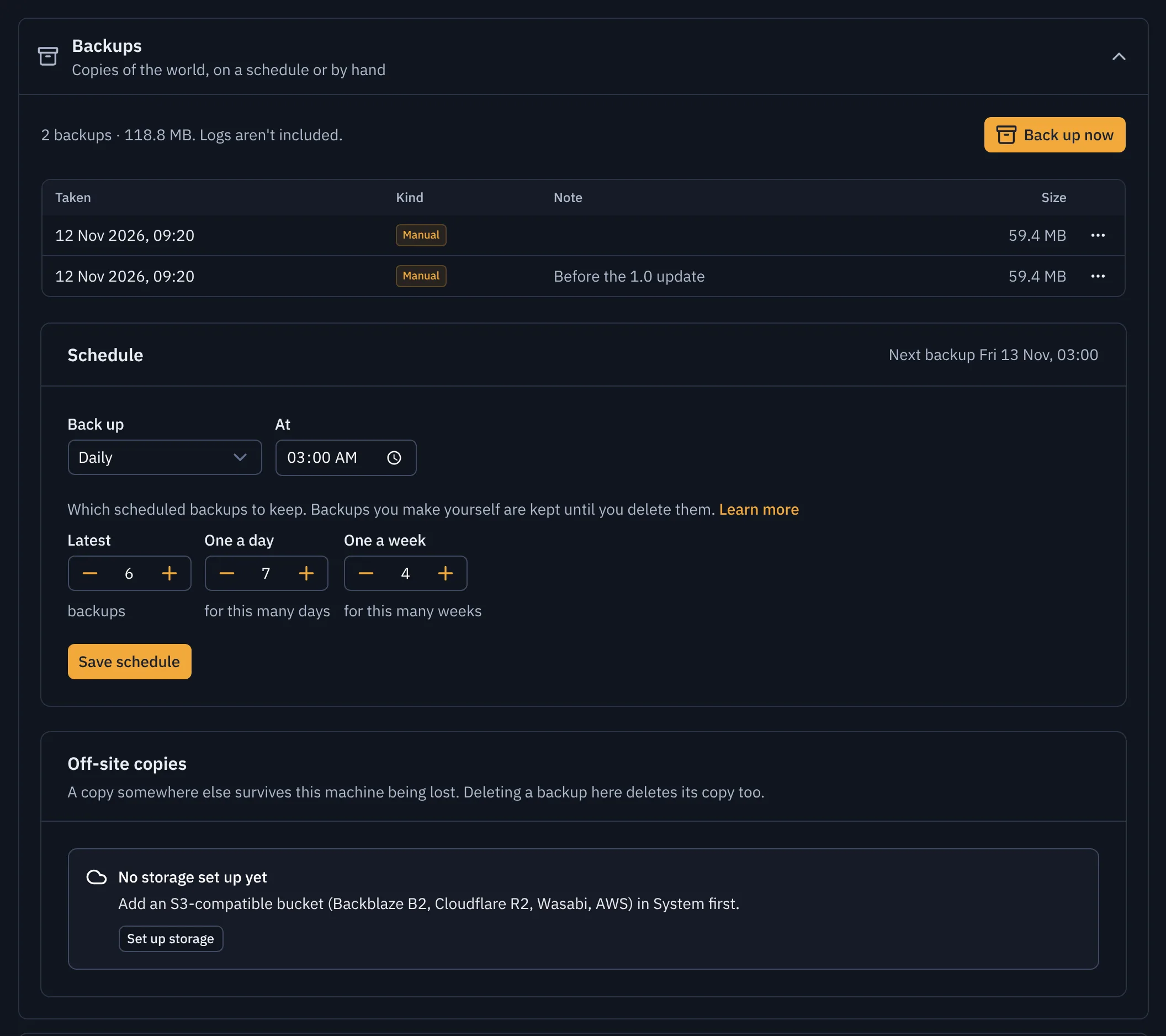
- Back up now
- Schedule
- Keep
Taking backups
- Back up now, with a note if you like. If the server is running, it pauses saving for a moment so the world on disk is consistent. Players stay connected.
- Schedule: every 6 or 12 hours, daily, weekly, or your own cron expression, in your time zone.
- Flytower also takes a safety backup before anything risky: applying a plan that touches mods or the world, restoring, resetting the world, or copying another world in.
Backups are .tar.zst archives of the whole server folder. They live in /var/lib/flytower/backups/<server>, and you can download them.
Some things are left out because they're never worth restoring: logs, crash-reports, spark's scratch folder config/spark/tmp, and any file ending in .tmp. If a file can't be read, for example because a mod made it private to the server, the backup leaves that file out rather than failing, and the backup's job says which files it skipped.
How many are kept
Scheduled backups are thinned out by the keep settings. By default Flytower keeps the newest 6, plus the newest from each of the last 7 days and the last 4 weeks. The three newest safety backups are kept. Backups you take yourself are never deleted automatically.
To keep any backup forever, choose Keep forever on it. It gets a Kept badge, retention never deletes it, and it doesn't count towards the numbers above. Stop keeping forever hands it back to retention.
When the disk is 95% full, scheduled backups are skipped rather than risk filling it, and Back up now asks first. See Disk space.
Restoring
Choose Restore on a backup. Flytower asks for your passkey, takes a safety backup of how things are now, stops the server, puts the backup back, and starts it again. Changed your mind? Restore the safety backup.
Off-site copies
A backup on the same machine won't help if the machine is lost. Flytower can copy backups to any S3-compatible storage, such as Backblaze B2, Cloudflare R2, Wasabi or Amazon S3.
- Create a bucket with your provider, and an access key that can read, write and delete in it. With R2 and B2, a key limited to that one bucket is best.
- System, Off-site storage, Add storage. Enter the endpoint (for example
https://s3.eu-central-003.backblazeb2.com), region, bucket, an optional folder prefix, and the key. Test writes, reads back and deletes a small file. - On each server's World, Backups, choose the storage under Off-site copies, or set
backups.offsitein its YAML. Existing backups are copied, and new ones follow within a minute or two.
Each backup shows a cloud icon once its copy is safe. Failed uploads retry by themselves (after 1, 5 and 30 minutes), and Retry off-site copy tries again straight away. Deleting a backup, or retention removing it, deletes its copy too. Copies are stored under <prefix>/<server>/<file>.
If a backup's local file is lost, the backup shows Off-site only, and restoring it downloads it first.
The secret key is encrypted with the panel's app secret (in /etc/flytower/panel.env) and is never shown again after you save it.
Sharing a world
World, Past worlds, Export world makes a zip of just the world, ready for single player. Share gives a link anyone can download it from, without signing in, for as long as you choose. Revoke a link to stop it working.
Past worlds
Resetting a world (World, Tools, Reset the world) can end a season rather than throw it away. The reset dialog offers to:
- Keep the old world as a past world, under a name you choose (for example "2025–26 world"). Flytower zips the old world, datapacks included, after the server has stopped and before anything is cleared, so it opens in single player exactly as it was. If there isn't room on the disk, the reset stops and nothing changes.
- Keep the final backup forever: the safety backup taken first is marked as kept. It holds the whole server (mods, settings and world), not just the world.
Past worlds are listed under World, Past worlds, and are kept until you delete them. Each one can be downloaded, shared with a link like an export, renamed, or turned into a new server with Start a server from it, which opens Import with that world chosen. Import, A past world lists every server's past worlds too.
Deleting a server leaves its past worlds and backups in place.
Addresses and DNS
By default players connect to your VPS's IP address, with a port for every server after the first. A hostname per server lets them type survival.example.com instead, with no port.
Branding
Flytower can wear your society's or community's name and colours instead of its own, without changing any code. Set it on System, Branding. Saving asks for your passkey.